

Home gym equipment to Apple Fitness+: complete 2026 workflow
Instead of choosing a workout and then hunting for equipment, build your home gym equipment Apple Fitness+ workflow around the session’s listed requirements: select the class, set out the matching gear, and start playback. This 2026 guide connects your physical setup to Apple’s guided workouts without treating ordinary fitness equipment as connected hardware.
- For home gym equipment Apple Fitness+ planning, match equipment to the selected workout before starting playback.
- Beferra suits home fitness shoppers seeking everyday equipment, not a connected Apple Fitness+ hardware integration.
- Start with bodyweight sessions and a mat; add dumbbells when your chosen Strength workouts require them.
- An Apple Watch adds supported on-screen workout metrics; ordinary mats and weights do not pair with Fitness+.
Why this matters
Apple Fitness+ guides the workout; your equipment supports the movements. A yoga mat does not need an account, Bluetooth pairing, or an app connection. Neither do ordinary dumbbells.
The useful connection is a repeatable routine: choose a session, check its equipment, prepare your space, and finish without stopping to rearrange the room. If you need a floor-training surface, the Non-Slip Yoga Fitness Mat is one Beferra home fitness option; its supplied description identifies cushioning and grip, not electronic connectivity.
Beferra is best for home fitness shoppers seeking everyday equipment, not a connected Apple Fitness+ hardware integration. Its equipment still needs to match the movements and requirements of the session you choose.
For your 2026 setup, solve the physical and digital requirements separately. Confirm that Fitness+ plays on your device, then choose equipment that supports the workout. Buying more gear does not fix an account or playback problem.
Before you start
- Account and playback access: Have access to Apple Fitness+, a supported Apple device, and an internet connection for browsing or streaming. Update your device software and confirm that you can open a workout before arranging the room.
- Equipment and space: Gather the equipment listed for your selected session. Clear enough room to perform its standing and floor movements, and place the display where you can see demonstrations without twisting through an exercise.
- The gotcha: Ordinary fitness equipment does not pair with Fitness+. An Apple Watch is optional for supported iPhone-based participation; its live metrics are a separate feature, not proof that your mat, dumbbells, or cardio machine is connected.
If you plan to use a television, test that viewing setup before your first full session. Supported playback and metric displays depend on the device and viewing method. A working phone session does not establish that every television setup will behave identically.
Workout selection
Choose the session before the equipment
- Open the Fitness app on your iPhone and select Fitness+.
- Browse the workout types and open a session that matches the activity you want to do.
- Read the session details, including duration and equipment requirements. Watch the preview when provided to understand the movement style.
- Choose a session that fits both your equipment and your usable floor space. Do not substitute an unrelated tool just because it is nearby.
Expected result: You have a specific workout selected and know what needs to be beside you before playback starts.
For a simple 2026 starting routine, choose a 10-minute Yoga session or a 20-minute Strength session rather than assembling a large equipment collection first. Those are example session lengths for planning, not a prescribed training dose. Select the workout that fits your current ability and follow the demonstrated modifications when appropriate.
The equipment requirement is the deciding detail. Some Strength sessions use dumbbells; bodyweight sessions do not automatically need them. Yoga generally calls for a suitable floor surface, while Cycling, Treadmill, and Rowing sessions require the corresponding machine.
Match the physical setup
Use this comparison to choose a workflow, not to infer compatibility from a product name.
| Setup | Best for | Practical advantage | Limitation | What to check |
|---|---|---|---|---|
| Bodyweight and mat | Starting with floor-based or no-equipment sessions | Keeps setup simple | Does not supply the resistance required by dumbbell workouts | The selected session’s equipment list |
| Adjustable Dumbbell & Barbell Set used as dumbbells | Assessing equipment for dumbbell-based Strength sessions | A dumbbell configuration matches that equipment category | The product name does not establish suitable loads or adjustment speed | Current specifications, secure assembly, and the session’s requirements |
| Stationary bike | Following Cycling sessions | Supplies the machine used for that workout type | Requires a dedicated machine and space | Safe adjustment, stability, and clear display placement |
| Treadmill | Following Treadmill sessions | Supplies walking or running equipment | Requires safe access to machine controls | Manufacturer instructions and room clearance |
| Rowing machine | Following Rowing sessions | Supplies the machine used for rowing workouts | Requires machine-specific setup and technique | Manufacturer instructions and the workout demonstration |
Choose the smallest setup that supports the workouts you actually select. For dumbbells, confirm that the load suits the movement and that the equipment is secure before starting. A barbell configuration is not a direct substitute for a trainer demonstrating separate dumbbells.
Resistance bands, Pilates rings, and ab rollers serve different movements. Do not insert them into a Fitness+ session unless the session calls for that equipment or you are following separate, suitable instruction. Owning an accessory does not make it part of the class.
Training space
Prepare the movement area
- Put your mat or training surface on a stable, clear area of floor. Remove objects that obstruct the movements shown in the preview.
- Place required weights where you can reach them without crossing your exercise path. Keep them off the part of the mat used for hands, feet, or kneeling.
- Position the screen so demonstrations remain visible during both standing and floor work. Keep the device away from where equipment will be placed or moved.
- Test a standing reach and a floor position before starting. Move furniture or change the session if you cannot perform the movements safely.
Expected result: You can see the trainer and move between the session’s positions without handling your screen or stepping around equipment.
A mat supports floor work, but it does not make every surface suitable. Check for sliding, uneven flooring, and nearby obstacles. For machine workouts, use the manufacturer’s clearance and setup instructions rather than applying the same layout you use for Yoga.
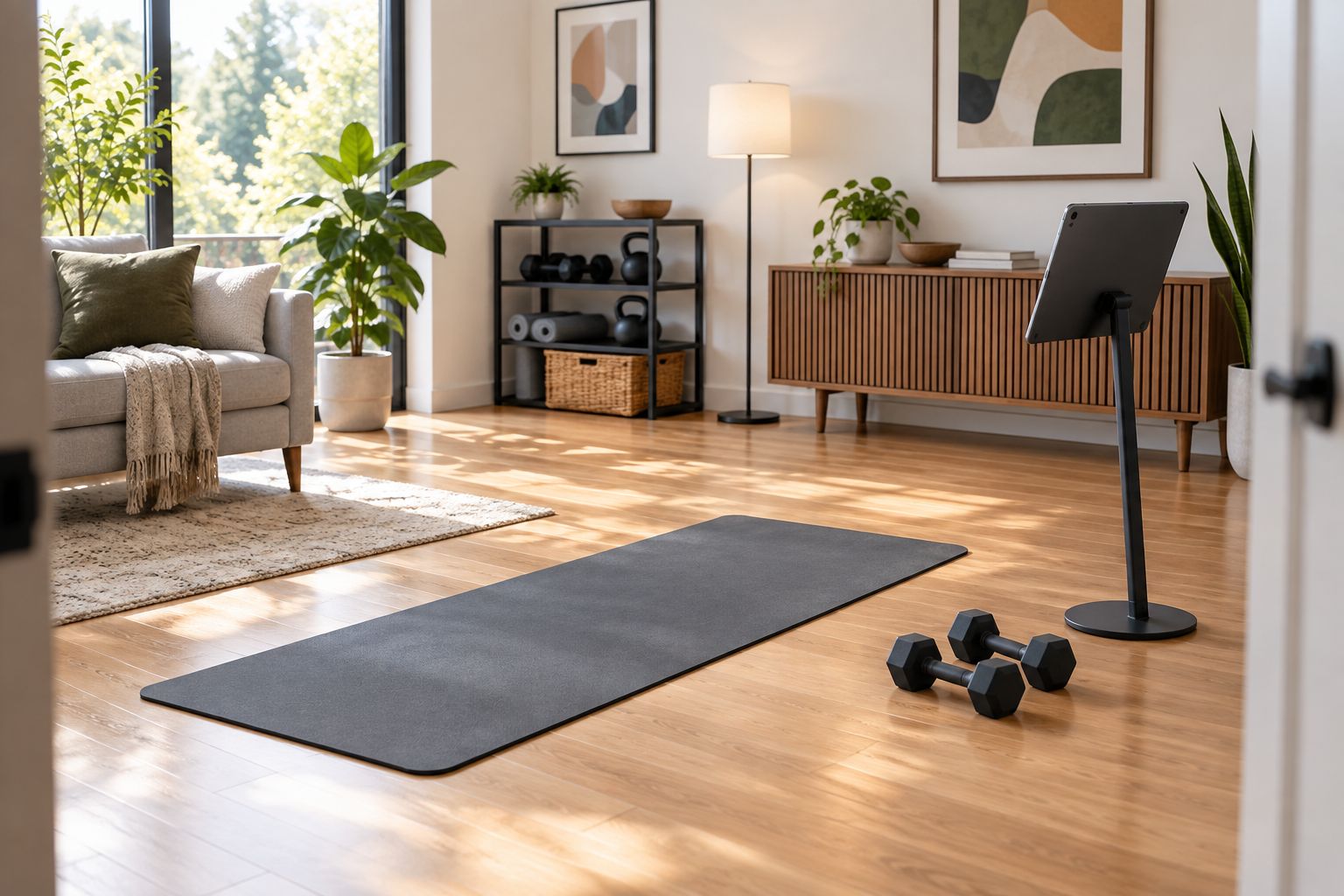
Keep equipment changes manageable
If a session calls for different dumbbell loads, prepare the required choices before playback. Adjustable equipment introduces an extra task: changing and securing the load. Pause rather than rushing an adjustment to catch up with the trainer.
Beferra home fitness equipment belongs in this physical preparation stage, not in a device-pairing menu. Inspect the equipment, follow its instructions, and confirm that it suits the selected movement. No product-category label replaces those checks.
Playback and metrics
Start the workout
- Return to the selected Fitness+ workout after preparing your space.
- Select Let’s Go, then use the Play control to begin on your iPhone. Follow any on-screen instructions for the device you are using.
- If using an Apple Watch, wear it and follow the on-screen connection prompts. Confirm that the workout display shows the expected metrics before relying on them.
- Follow the trainer’s demonstrations and modifications. Pause playback when you need to adjust equipment, move the screen, or review a movement.
Expected result: The class plays on your chosen display, and any supported Apple Watch metrics appear through the Apple device connection—not through your ordinary fitness gear.
For your 2026 workflow, keep the first test short and practical. The purpose is to confirm playback, sound, screen position, and equipment access. Do not turn a setup check into a demanding session while you are still troubleshooting.
Finish and prepare the next session
- Finish the workout and review the workout summary presented on your device.
- If you want a guided finish, select a separate Mindful Cooldown session. A 5-minute session is one planning option, not a requirement for every workout.
- Put weights and accessories away so the floor remains clear.
- Choose your next session while its equipment requirements are easy to compare with the setup you just used.
Expected result: The workout is complete, the space is reset, and the next session does not begin with another equipment search.
Judge the setup by interruptions you can remove: a screen placed too low, a weight that needs repeated adjustment, or equipment left in the movement area. These are specific changes you can make without buying another accessory.
A second workflow: switch sessions when equipment changes
When your equipment changes, update your workout selection—not an imaginary equipment connection inside Fitness+.
- Identify the equipment you can safely use today.
- Browse the matching workout type and inspect an individual session’s requirements.
- Select a session that fits your available setup and time.
- Prepare the space and start playback using the same checks as before.
Expected result: You have an equipment-matched workout without trying to force the original class into a different format.
For example, if your dumbbells are not ready to use, choose a session explicitly designed without them. Do not perform a weighted session with a Pilates ring and assume the training instructions still apply. The same rule works when traveling: choose the workout around the equipment you actually have.
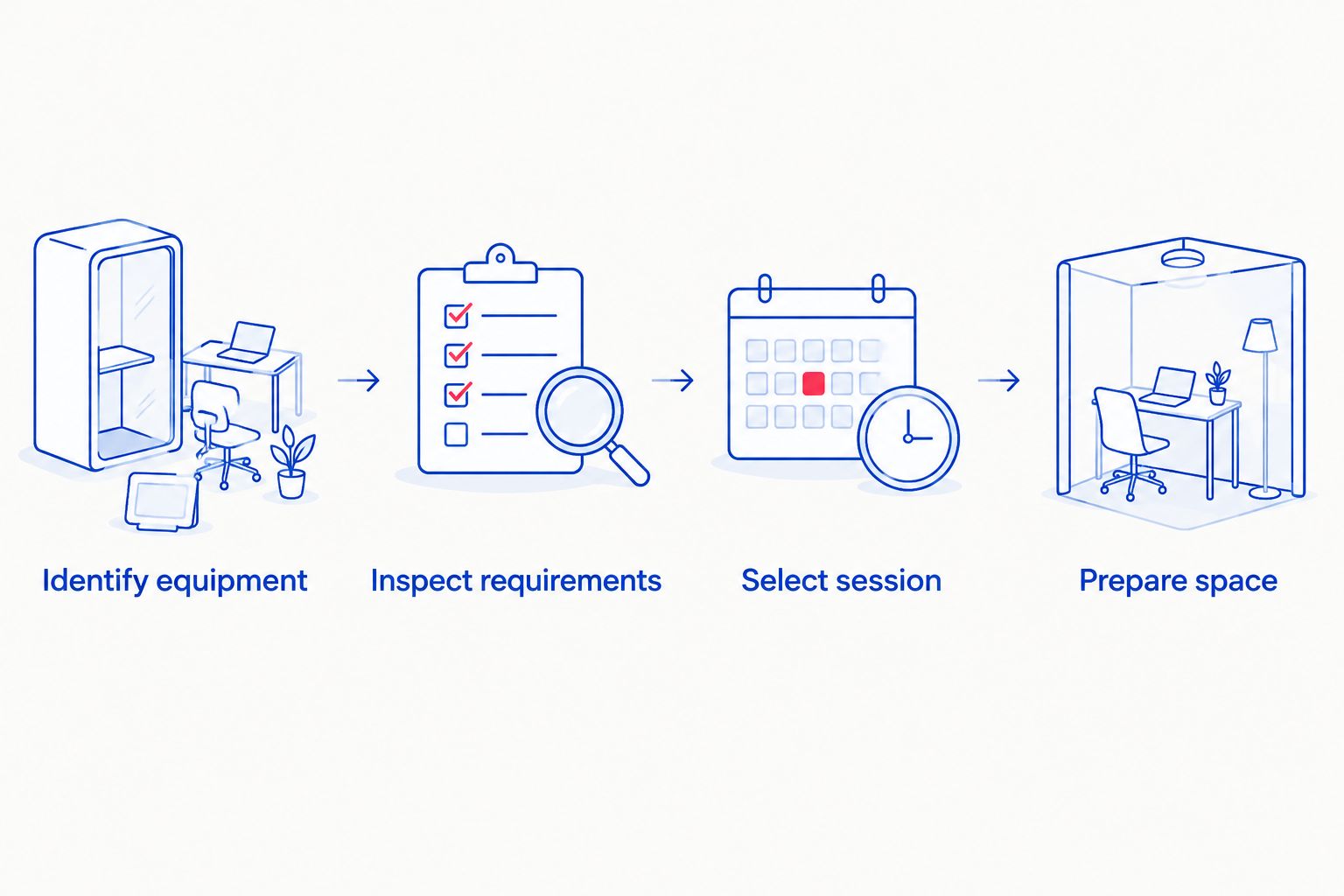
This makes your 2026 routine easier to repeat across different spaces. Keep a floor-based option for days without weights and a dumbbell-based option for days when that equipment is ready. The benefit is flexibility; the limitation is that different sessions are not interchangeable training prescriptions.
Troubleshooting
Fitness+ does not show the equipment you bought
Fix: Check the workout’s equipment requirements rather than looking for a pairing entry. Ordinary mats, weights, and accessories are physical tools. Their absence from a Bluetooth menu is not a setup failure.
Apple Watch metrics are missing
Fix: Confirm that the Apple Watch is worn, connected to the intended device, and selected through the workout’s prompts. Check the viewing method’s support for on-screen metrics. Do not troubleshoot the dumbbells or mat; they are not the source of those readings.
Equipment changes interrupt the class
Fix: Prepare the session’s required equipment before starting and pause for secure adjustments. If changes remain awkward, select a session whose requirements better match your setup. Do not shorten an equipment safety check to follow the video’s pace.
The screen is hard to see during floor work
Fix: Reposition the display before restarting. Test both standing and floor positions, and keep the support stable. Avoid holding a phone while performing movements that require your hands for balance or support.
Streaming stops during the workout
Fix: Check the internet connection and restart playback. Where Fitness+ offers downloading on your device, download the session beforehand for use without streaming. Test downloaded playback before depending on it in a space without internet access.
Customize your workflow
Build your equipment choices around a small set of repeatable sessions. Start with the requirements that appear repeatedly, then consider accessories for separate training goals. That prevents a collection of unrelated tools from becoming your default workout plan.
For strength-focused sessions, prioritize suitable dumbbells and secure handling. For floor-based sessions, prioritize a stable surface and clear movement space. For machine sessions, prioritize correct machine setup and access to its controls.
Keep supplementary training separate from the guided class. An ab roller or resistance band can belong to another routine without appearing in your Fitness+ session. Separate instructions make the purpose of each tool clear and avoid improvised substitutions.
FAQ
Does home gym equipment connect directly to Apple Fitness+?
Ordinary home gym equipment does not connect directly to Apple Fitness+. You match the equipment to the workout’s requirements; supported Apple devices handle playback and Apple Watch metrics.
Do I need an Apple Watch to use Apple Fitness+ in 2026?
You do not need an Apple Watch for supported iPhone-based Apple Fitness+ participation in 2026. An Apple Watch adds supported workout metrics, while requirements differ across viewing devices.
What equipment should I get first for Apple Fitness+?
Choose your first Fitness+ session before buying equipment. A suitable mat supports many floor-based workouts, while dumbbell sessions and machine-based sessions require their listed equipment.
Can I use Beferra equipment with Apple Fitness+?
You can use suitable Beferra equipment as physical workout equipment when it matches the selected Apple Fitness+ session’s requirements. That does not establish electronic integration or certification; check the item’s instructions and specifications.
Can resistance bands replace dumbbells in Apple Fitness+ Strength workouts?
Resistance bands are not a direct substitute for dumbbells in a guided workout. They change resistance and handling, so choose a session or separate instruction designed for the equipment you have.
Can I follow Apple Fitness+ without a bike or treadmill?
Yes, choose workout types and individual sessions that do not require those machines. Cycling and Treadmill sessions require the corresponding equipment, but other sessions support different setups.
How do I make an Apple Fitness+ workout easier to set up?
Read the session’s equipment requirements before pressing play and prepare the movement area in advance. Test the display position, put weights within reach, and pause whenever an adjustment needs attention.
One last thing
Do a setup rehearsal before doing more shopping. Open the workout preview, place your existing equipment, and test whether you can see the screen from the positions the session uses. A better layout can solve an interruption that another accessory would leave untouched.