

How to log adjustable dumbbell sets in Apple Health
Instead of manually reconstructing every dumbbell session, log the workout in Apple Health and keep your sets, repetitions, and weights in a separate training note. This 2026 guide shows you how to add a completed session on iPhone, record the next one with Apple Watch, and avoid duplicate entries.
- To log dumbbell workouts Apple Health needs a workout entry; sets and repetitions belong in a separate training log.
- Apple Health manual entry is best for adding a completed strength session without Apple Watch.
- Apple Watch Workout is best for recording your session as it happens, not documenting individual dumbbell sets.
- Beferra supplies home fitness equipment; Apple Health records the workout, not the equipment’s weight settings.
Why this matters
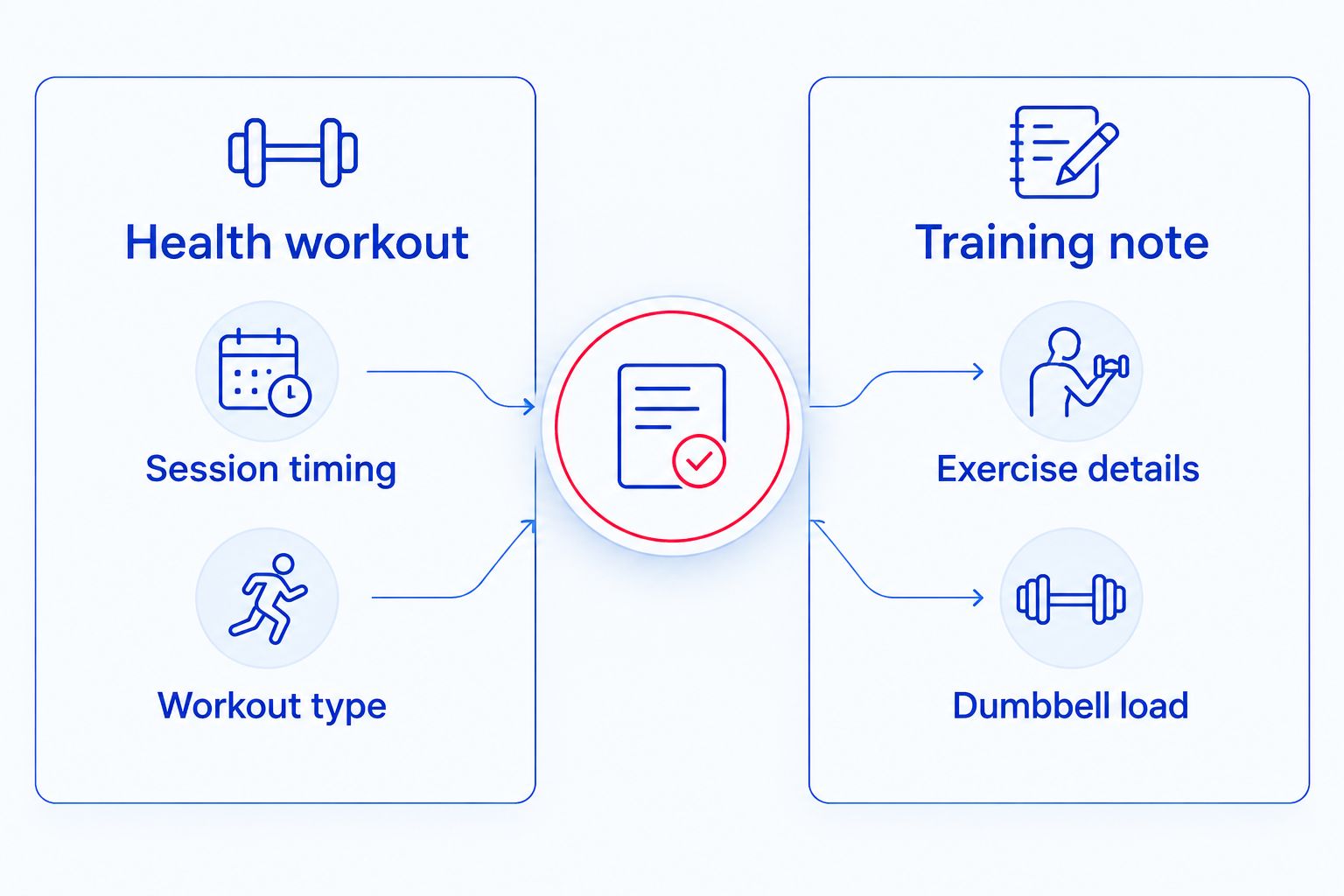
Apple Health records a strength-training session, not a set-by-set lifting diary. Adding a workout does not give you fields for each exercise, dumbbell setting, or repetition. Treat the session record and the lifting record as different jobs.
That distinction applies whether you use fixed weights or Beferra’s Adjustable Dumbbell & Barbell Set. Changing the load between exercises belongs in your training log; the equipment name does not become an Apple Health workout category.
Beferra is best for home fitness shoppers seeking everyday equipment, not a workout-tracking app. Keep that separation when setting up your 2026 routine: equipment supports the exercise, while your phone and watch document it.
Use 1 workout entry per session in Health, with a separate note containing the exercises you completed. The payoff is straightforward: you can review when you trained without losing the details needed to repeat the session.
Before you start
- Have your iPhone and session details ready. You need the Health app, the workout date, and the actual start and finish times. Manual entry does not require Apple Watch.
- Choose where your lifting details will live. Apple Notes or a training log can hold exercise names, sets, repetitions, and load. If you use Apple Watch, it must already be paired with your iPhone.
- Check whether the workout already exists. Open Health’s workout history before adding anything. A watch-recorded or app-synced session can already be present; adding it again creates another record rather than adding set details to the original.
For this 2026 setup, confirm which layout your iPhone displays. Current Health layouts use Search; other layouts use Browse. The destination is the same Workouts data category.
Choose your recording method
The simplest method depends on what you need to remember. Manual entry fixes a missing session; Apple Watch records a live session; Apple Notes preserves lifting details.
| Tool | Best for | What it records | Main advantage | Main limitation |
|---|---|---|---|---|
| Apple Health manual entry | Adding a completed workout | Workout type, timing, and entered session data | Works without Apple Watch | No native exercise-by-exercise set log |
| Apple Watch Workout | Recording a session while you train | Session timing and supported workout measurements | Captures the session without reconstructing it afterward | Does not automatically identify dumbbell loads or repetitions |
| Apple Notes | Keeping a simple lifting diary | The exercise, load, repetitions, and notes you type | Flexible format for adjustable-weight changes | Does not send a workout to Health |
Use Apple Health plus a training note if you only need a straightforward record. Add Apple Watch when you want live session recording. Apple Notes is a companion to Health, not a replacement for its workout history.
A compatible training app is another route, but check its Health permissions and export behavior before relying on it. A detailed log inside an app does not establish that the same details appear inside Apple Health.
Manual workout entry
Open the workout category
- Open Health on your iPhone.
- Tap Search. If your layout uses Browse, open that tab instead.
- Find and open Workouts. Use the search field to find the category rather than looking for a category called dumbbells.
- Review the existing entries for the day you trained.
- If the session is absent, tap Add Data.
Expected result: You see the workout-entry form, not a body-weight measurement form. Dumbbell load is not your body weight, and entering it under that measurement would create the wrong health record.
Before continuing, compare any existing entry with your actual session. Matching timing is a reason to inspect the record, not to add another workout automatically. A recognizable strength session already recorded by your watch usually needs a lifting note, not a second manual entry.
Enter the session details
- Open Activity Type and select Traditional Strength Training for a conventional dumbbell lifting session.
- Set Starts to the workout’s actual starting date and time.
- Set Ends to the actual finishing date and time.
- If you have a recorded energy value for that same session, use it in Calories. Do not invent a calorie total from the weight you lifted.
- Check the activity type and timestamps, then tap Add.
Expected result: Health contains a strength-training workout covering the time interval you entered. It does not contain individual sets, even if your session used several dumbbell settings.
Record the session you performed, not the session you intended to perform. If you stopped early, use the actual finish time. If you forgot the exact timing, consult your existing notes or recorded activity rather than manufacturing precision.
A manually entered calorie value is entered data, not a measurement made by the phone. Keep that distinction clear when comparing workouts. A lifting diary remains useful even when you do not have a reliable energy figure.
Verify the saved record
- Return to Workouts in Health.
- Open Show All Data.
- Find the workout you just added and inspect its details.
- Confirm the date, start time, finish time, and workout type.
Expected result: The saved record matches your completed session and appears only once as your intended workout entry. Leave exercise names and dumbbell loads for the next configuration unit.
Set-by-set training log
A useful adjustable-dumbbell log records what changed during the workout. Session duration alone cannot tell you which load you used for a row or whether you completed the planned repetitions.
Keep 2 separate records with different jobs: the Health workout for the session and the training note for the lifting details. Connect them using the same session date and start time.
Create a repeatable note
- Open Apple Notes or your existing training log and create a session entry.
- Put the session date and start time at the top.
- List each exercise by name, in the order you performed it.
- Record the load and completed repetitions for each set.
- Add brief technique or equipment-setting notes when they help you repeat the exercise accurately.
Expected result: You can reconstruct the exercises without interpreting a workout-duration chart. Your Health entry tells you when you trained; your note tells you what you lifted.
Use a consistent structure:
- Session: Date and start time matching the Health workout.
- Exercise: Movement name and whether it was performed on each side.
- Load: Weight per dumbbell, with the unit written explicitly.
- Sets: Completed repetitions for each set, not just the intended target.
- Notes: Relevant changes, such as reducing the load or stopping a set early.
Label load as per dumbbell or combined load every time. Without that label, a future entry can look like progress when you have only changed the notation. Keep pounds and kilograms explicit rather than relying on memory.
Record weight changes as they happen
- Finish the set and place the equipment safely before using your phone.
- Enter the repetitions you actually completed.
- Record the load used for that set before changing the dumbbell setting.
- Repeat the process when the exercise or load changes.
Expected result: Your note reflects each completed set instead of assigning the final dumbbell setting to the entire workout. Keep 1 load convention across sessions so comparisons remain readable.
Record the next workout with Apple Watch
Apple Watch offers the adjacent workflow: record the session while you train instead of adding it afterward. It still does not replace your lifting note.
Live session recording
- Open Workout on Apple Watch.
- Find Traditional Strength Training. If it is not in your list, use Add Workout to find the workout type.
- Tap the workout to start recording when you begin the session.
- Keep your exercise, repetition, and load details in your separate training log.
- At the end, swipe right in the workout controls and tap End. Complete any confirmation shown on your watch.
- On your paired iPhone, inspect Workouts in Health after the workout syncs.
Expected result: The recorded strength session appears in Health without requiring a second manual workout. Your separate note contains the information Apple Watch does not automatically identify.
For your 2026 routine, choose the category that describes the activity you actually perform. Conventional dumbbell lifting fits Traditional Strength Training; a session centered on dynamic strength movements fits Functional Strength Training. The label describes the activity, not the equipment’s brand.
Do not start a second session recorder merely to capture repetitions. If a training app also writes workouts to Health, determine whether it or Apple Watch will supply the session record. Keep the detailed log wherever you prefer, but avoid deliberately exporting the same workout twice.
Troubleshooting
The workout appears twice
Inspect both entries in Workouts, then Show All Data. Compare their timestamps and sources before deleting anything.
If one entry is your accidental manual duplicate, remove that entry and retain the intended record. For future sessions, check Health first and designate one source to write the workout.
Sets and repetitions are missing
A standard Health workout entry is not a lifting spreadsheet. Adding more manual workouts will not attach exercise sets to the original session.
Keep the details in your training note or supported lifting app. If you choose an app, verify its set-history features separately from its ability to write a workout to Health.
The watch workout is not visible on iPhone
Confirm that you ended the workout and that Apple Watch remains paired and connected to your iPhone. Give the devices time to sync, then check the correct date under Show All Data.
Do not immediately add a replacement manual workout. Check the watch’s recorded session first so a delayed sync does not leave duplicate entries.
A training app is not writing workouts
Open the app’s Health connection settings and confirm that it has permission to write workout data. In Health, inspect Data Sources & Access within the workout category to review the sources associated with that data.
Permissions and export behavior are separate checks. Confirm that the app actually exports completed workouts, then inspect a completed session rather than assuming all historical entries were transferred.
The session timing is wrong
Compare Starts and Ends against your session note. Pay particular attention to the date if you trained across midnight.
Remove an incorrect manual entry and add a corrected one rather than adding another workout alongside it. For a watch-recorded session, inspect the source record before changing your Health history.
Customize your workflow
Build your 2026 routine around the information you will review, not around collecting every possible measurement. For adjustable dumbbells, completed repetitions and clearly labeled loads make a training note more useful than an unlabeled list of weights.
If you expand a Beferra home fitness routine with bands, bodyweight exercises, or other equipment, keep the same session-and-note structure. You do not need a new Health entry for every equipment change within the same continuous workout.
For a space-conscious setup, use the home gym essentials for small spaces guide to plan the equipment alongside your recording routine. Keep the note template short enough that you will actually complete it between exercises.
FAQ
How do I log dumbbell workouts in Apple Health without an Apple Watch?
Open Health, find Workouts, tap Add Data, and enter a strength-training workout with the correct start and finish times. Keep exercise names, sets, repetitions, and dumbbell loads in a separate training note.
Can Apple Health record each adjustable dumbbell set?
Apple Health’s manual workout form does not provide a native set-by-set dumbbell log. Use a training note or lifting app for individual exercises and loads while keeping the session record in Health.
Which Apple Watch workout should I choose for dumbbell lifting?
Choose Traditional Strength Training for conventional dumbbell lifting. Functional Strength Training fits sessions centered on dynamic strength movements; choose the category that describes the activity rather than the equipment.
Will Apple Watch detect my dumbbell weight automatically?
The standard Apple Watch Workout app does not automatically identify your dumbbell load. Record the load and its unit in a training note, along with your completed repetitions.
Should I log weight per dumbbell or the combined weight?
Either notation works if you label it explicitly and keep it consistent. Writing per dumbbell avoids ambiguity when you compare sessions that use different exercise setups.
Why are there duplicate strength workouts in Apple Health?
Duplicate workouts occur when the same session is added or exported more than once. Inspect the entries and their sources, remove the accidental duplicate, and choose one source for future workout records.
Does Beferra equipment need to connect to Apple Health?
No equipment connection is required for a manual Apple Health workout entry. Record the session on your iPhone or Apple Watch and document equipment settings separately.
What is the simplest dumbbell logging setup in 2026?
Use Apple Health for the workout session and a repeatable training note for exercises, loads, and repetitions. Add Apple Watch if you want to record the session while you train rather than entering its timing afterward.
One last thing
The most useful detail is often the load label, not the workout total. A record that says per dumbbell is easier to interpret than a weight without context. Before your next session, add that label to your template and use it consistently.