

Pull-up bar to Garmin Connect: complete 2026 workflow
Instead of copying pull-up sets from a notebook after every session, record a Strength activity on a compatible Garmin watch and sync it to Garmin Connect. This 2026 workflow uses the watch to capture your workout; the Adjustable Door Pull-Up Bar supplies the exercise station, not the training record.
- The pull up bar garmin connect workflow records Strength activities on a compatible Garmin watch, not through the bar.
- Garmin Connect works best when you check pull-up reps and exercise labels after syncing.
- Beferra home fitness equipment suits everyday home-workout shoppers; Garmin compatibility depends on your watch.
- Use a free Strength session for flexibility or a structured workout for repeatable sets and rests.
Why this matters
A pull-up session is easier to compare when the record distinguishes working sets, rest, and exercise variation. A timer alone tells you how long you trained. It does not explain whether you completed strict pull-ups, used assistance, or stopped before your planned repetitions.
The useful connection is between your Garmin watch and Garmin Connect, not between the bar and your phone. Start with that distinction and you avoid searching for a pairing setting on equipment that is serving a physical role in the workout.
Beferra home fitness equipment is best for everyday home-workout shoppers who want functional exercise essentials. For this workflow, judge the bar by its installation requirements and intended use; judge the Garmin watch by its Strength activity and workout support. Neither decision replaces the other.
For your 2026 training log, make consistency the goal. A corrected set record with a clear exercise name is more useful than an automatically detected count you never checked.
Before you start
- Accounts and access: Have a Garmin account, the Garmin Connect app, and a Garmin watch that supports Strength activities. Structured strength workouts also require a watch that supports receiving that workout type.
- Equipment and installation: Have your pull-up bar installed according to its instructions, with a suitable mounting location and clearance. Check the stated installation conditions and load limits before exercising; this guide does not replace the equipment instructions.
- The gotcha: Strength activity support does not guarantee identical rep editing, exercise detection, or workout-download controls across Garmin models. Confirm those functions in your watch manual before building a session around them. Automatic rep counting is not a substitute for checking completed reps.
Settle the recording method before you hang from the bar. Do not try to adjust a watch, read instructions, or change phone settings while supporting your body weight.
Choose your recording method
Two workflows cover the practical choices: an open Strength session and a prebuilt Strength workout. Both aim to produce an activity in Garmin Connect, but they organize the workout differently.
| Workflow | Best for | Advantage | Limitation |
|---|---|---|---|
| Free Strength session | Pull-up practice with changing set lengths | Lets you decide the next set during the session | Requires careful set marking and later review |
| Structured Strength workout | Repeating a planned pull-up session | Keeps the intended exercises and rests together | Requires compatible workout support and setup before training |
Use a free Strength session first. It lets you confirm that recording, set transitions, and syncing work before you introduce a downloadable workout.
Choose a structured workout once you want to repeat the same plan. A planned session helps organize training, but the record still needs your actual repetitions rather than the repetitions you intended to complete.
Neither method turns the pull-up bar into a sensor. Garmin records through its supported devices and software; the physical equipment remains part of the exercise setup.
Watch and activity setup
The following labels refer to Garmin's Strength workflow. Button positions and available controls depend on the watch, so use the model's instructions for the physical button sequence rather than copying another watch's layout.
- Open Garmin Connect and confirm that your watch is paired with the account you intend to use. If you recently changed phones or accounts, resolve that connection before recording a workout.
- Sync the watch. Check that Garmin Connect recognizes the device rather than assuming that a Bluetooth connection alone means the activity will reach your account.
- Open the activity list on your watch and select Strength. If that activity is absent, check the supported activity list for your model before continuing.
- Select Free where your watch offers that choice. This opens an unstructured strength session rather than a previously created workout.
- Review the Strength settings available on your model, including rep counting and any automatic set-detection option. For your first session, use deliberate manual set transitions where supported so you can see exactly what the watch records.
Expected result: The watch is ready to record a Strength session, and you know which control ends a set and begins rest. Your phone is connected for syncing, but you do not need to hold it during the exercise.
Do a rehearsal away from the bar. Start the activity, mark a practice set transition, then discard that rehearsal rather than saving it as training. This checks the controls without distracting you during a loaded movement.
Set and rest recording
Record the workout at the watch, then correct the record once you are safely off the bar. Repetition detection depends on movement; a detected count is not evidence that every repetition was performed as intended.
- Start the Strength activity using your watch's start control. Begin your first working set only after the activity timer is running.
- Complete the set and step down safely. Count the repetitions yourself so you have a reference when reviewing the recorded number.
- Use the set-ending control described in your watch manual. On supported models, this separates the working set from the rest period.
- If your watch presents a rep-editing control, correct the count while resting. Otherwise, keep the actual count for editing in Garmin Connect after syncing.
- Begin the next set using the model's prescribed control. Repeat the same sequence throughout the session, then stop the activity and select Save.
Expected result: You have one saved Strength activity containing your session, with working sets and rests separated where the watch supports that structure.
For a recording example, enter 3 sets of 5 reps with 90 seconds of rest only if those numbers match what you completed. These figures illustrate how to keep a log; they are not a strength prescription or a product specification.
Keep assistance and added load distinguishable. A bodyweight pull-up, an assisted pull-up, and a weighted pull-up should not become interchangeable entries simply because they use the same bar.
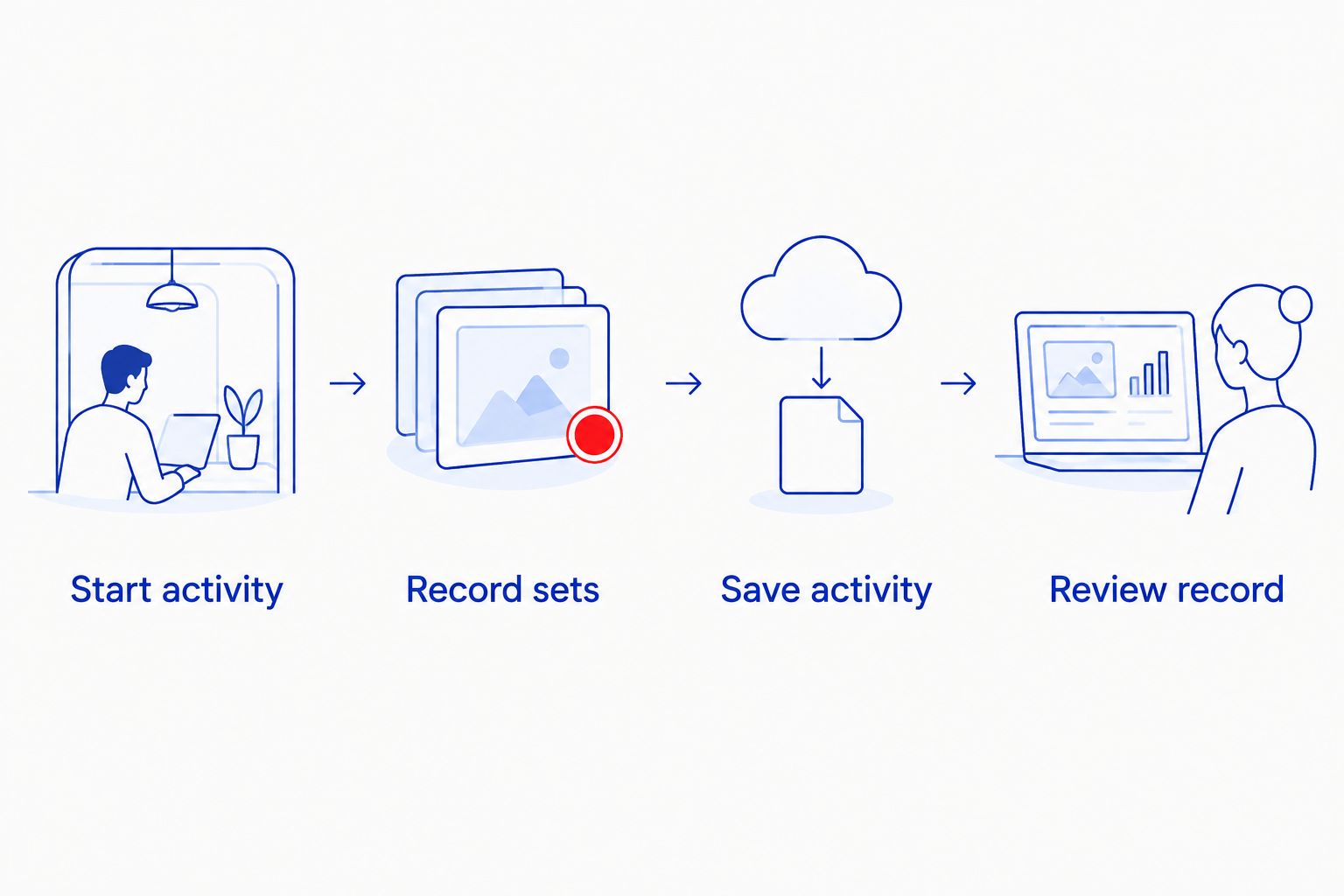
Garmin Connect record review
Syncing transfers the activity; reviewing makes it useful. Complete this check before treating the session as a reliable comparison point.
- Open Garmin Connect after saving the watch activity and sync the device. Wait for the completed Strength activity to appear in your activity list.
- Open that activity and inspect its date, duration, and set record. Confirm that you are viewing the finished session rather than a rehearsal or an earlier workout.
- Open the activity menu and select Edit Activity. Use the available strength-editing controls to review exercise names, repetitions, and weight entries.
- Correct the exercise selection if automatic detection assigned the wrong movement. Choose the pull-up entry that matches the exercise you performed, using the available exercise library.
- Save your edits and reopen the activity to verify that the corrections remain. Add a short note describing assistance, grip, or an unusual interruption when the relevant notes field is available.
Expected result: Garmin Connect contains the completed workout with corrected exercise labels and repetitions, plus enough context to understand the session later.
Do not force an assistance setting into an added-weight field. Use the fields according to their meaning and describe assistance separately when there is no suitable dedicated field. Likewise, do not enter your body weight as external load unless the specific field calls for it.
For a clean 2026 record, use the same naming convention each time. Changing between vague labels such as upper body and precise exercise entries makes comparisons harder even when the workout itself stays consistent.
Structured workout setup
Use this second workflow when you want your intended exercise sequence on a compatible watch before you begin. It adds preparation, not a direct connection to the bar.
- In the Garmin Connect app, open More, then Training & Planning, then Workouts.
- Select Create a Workout, then choose Strength. Build the session using the exercise and step controls available in the workout editor.
- Add the appropriate pull-up exercise and specify your planned repetitions. Include rest steps where you want the workout to separate work from recovery.
- Select Save and give the workout a distinct name. A descriptive name is easier to identify on the watch than several similarly named workouts.
- Open the saved workout and select Send to Device. Choose a compatible watch and sync it before leaving your phone behind.
- On the watch, open Strength and select the transferred workout through the model's workout menu. Follow its prompts, record what you actually complete, then save and sync the finished activity.
Expected result: The planned workout is accessible on the watch, and the completed session appears as a separate activity in Garmin Connect after syncing.
A workout template and a completed activity serve different purposes. The template holds your plan. The activity records the session you performed. Editing the template for next time does not correct repetitions in an already completed activity.
Keep your 2026 templates simple until the process is familiar. One pull-up exercise with clearly defined rest is easier to verify than a circuit containing several similar pulling movements.
Repeat the workflow with an updated plan
Once the first session is correct, change the saved workout when your next session needs a different target. Resend and sync the revised workout before training; do not assume the watch already has your latest version.
For example, a plan can move from 3 sets of 5 reps to 3 sets of 6 reps when that change fits your training. The recording rule stays the same: log the completed repetitions, including a shorter final set, rather than overwriting reality with the target.
Use a clear workout name to distinguish revised plans. Then open the workout on the watch and inspect the target before starting. This catches an old version without requiring you to discover the mismatch halfway through training.
Best for repeatable sessions: The structured Strength workout. Its benefit is a consistent plan; its drawback is the extra step of updating and sending that plan whenever you change it.
Troubleshooting
The rep count is wrong
Correct the count during rest if the watch supports editing, or after syncing in Garmin Connect. Pull-ups do not always produce the wrist movement that automatic counting expects. Keep your own count and check every working set.
Pull-ups appear as another exercise
Edit the exercise name in the completed Strength activity. Automatic exercise identification is not a technique assessment. Use the entry that matches the movement you performed and preserve assistance details in a suitable field or note.
The activity is missing from Garmin Connect
Confirm that you selected Save on the watch, then check the connection and sync again. Verify that the app is signed into the intended Garmin account. Do not create a duplicate manual entry while the original watch activity is still awaiting transfer.
The workout will not send to the watch
Check whether the model supports downloaded Strength workouts, not merely Strength activity recording. Select the intended device in Send to Device and sync. A free Strength session is the alternative when structured workout support is absent.
Work and rest appear mixed together
Review how your model marks the end of a set and the beginning of the next one. If automatic set detection is enabled, test manual transitions for a session. Make the watch interaction part of your rest routine rather than attempting it while hanging.
Customize your workflow
Expand the exercise plan only after the pull-up record is dependable. Add complementary movements as separate exercises so their repetitions do not get folded into the pull-up entry.
Beferra offers everyday fitness equipment, but equipment selection and training-log setup remain separate decisions. Pick equipment for the movement you intend to perform, then choose the matching exercise in Garmin Connect. Do not select an exercise solely because its name resembles a product title.
For your 2026 progression review, compare like with like: exercise variation, assistance, completed repetitions, and added load where relevant. Duration provides context, but a longer session is not automatically a better session.
Keep the workflow short enough to repeat: record sets, save, sync, review. Add detail only when it helps you make a training decision.
FAQ
Can I connect a pull-up bar directly to Garmin Connect?
This workflow connects a compatible Garmin watch to Garmin Connect, not the pull-up bar itself. Record a Strength activity while using the bar, then sync and review the completed session.
Does Garmin automatically count pull-ups?
Garmin watches with supported Strength rep-counting features can count repetitions, but the count needs checking. Correct discrepancies during rest where supported or in Garmin Connect after syncing.
What Garmin activity should I use for pull-ups?
Use Strength on a Garmin watch that supports that activity. Record set transitions using your model's controls and review the exercise labels after the activity syncs.
Can I create a pull-up workout in Garmin Connect?
Yes, Garmin Connect supports creating Strength workouts and sending them to compatible devices. Use More, Training & Planning, Workouts, and Create a Workout, then confirm that your watch supports the workout type.
How do I record assisted pull-ups in Garmin Connect?
Select the appropriate exercise entry where available and preserve the assistance details in a suitable field or note. Do not record assistance as added external weight.
Why did Garmin record the wrong pull-up repetitions?
Automatic strength rep counting depends on detected movement and can miscount a set. Use your actual completed repetitions to correct the activity rather than accepting the detected number unchanged.
Do I need a structured Garmin workout for every pull-up session?
No, a free Strength session is suitable when you want to decide your sets during training. A structured workout is better for following a repeatable plan, but requires compatible device support and advance setup.
One last thing
Your first useful milestone is not a bigger rep count. It is a workout record you can trust.
Before repeating the session, open the previous activity and check whether another person could understand what you did from its exercise labels and notes. If assistance or added load remains ambiguous, fix the naming convention now. That small change makes the next comparison meaningful.