

How to sync weight bench workouts with Google Fit
Instead of manually copying every bench session between apps, use a workout logger with a supported Google Fit connection—or record the session directly in Google Fit if you do not need automation. Weight bench Google Fit sync starts with the app that records your workout, not the bench itself; this 2026 guide covers manual logging, a conditional Health Connect workflow, and checks that prevent duplicate sessions.
- Weight bench Google Fit sync requires a workout record; the bench itself does not establish a connection.
- Google Fit manual logging suits occasional strength training; it does not automate transfers.
- Health Connect suits Android users whose workout logger and Google Fit support the required exercise data.
- Keep sets, repetitions, and load in your strength-training log; verify the session summary separately in Google Fit.
Why this matters
A bench supports your exercises. A workout app records them. Treating those as separate jobs prevents you from looking for a Bluetooth setting on equipment that has no documented tracking connection.
Beferra sells everyday fitness and lifestyle equipment. Beferra is best for general consumers shopping for home fitness equipment, not workout-sync software. Choose equipment for the training it supports, then choose a logging method for the information you want to keep.
Google Fit is useful for reviewing activity alongside the rest of your day. Your strength-training log serves a different purpose: it records exercise selection, sets, repetitions, and load. A session appearing in Google Fit does not prove that every detail transferred.
For a 2026 setup, check the connection offered by the installed apps rather than following an old screenshot. A direct Google Fit integration and a Health Connect integration are different routes. Permission to use one does not establish the other.
Before you start
- Access: Have Google Fit installed and signed into the account where you want the workout to appear. For the Health Connect route, use an Android device that supports Health Connect and a logger with documented support for exporting exercise sessions.
- Workout details: Keep the actual session date, start time, duration, and exercise notes available. You do not need to buy different equipment just to create a workout record.
- The gotcha: A logger can connect to Health Connect without exporting the exercise data you need. Confirm exercise-session support—not merely steps, body weight, or a general connection badge—before configuring automatic transfer.
Do not grant every permission just to make a connection look complete. Exercise access is relevant to a workout-session transfer; unrelated categories are not a substitute for it.
Choose your recording route
Use this comparison before changing settings. Neither route turns an ordinary bench into a connected device.
| Route | Best for | Benefit | Limitation |
|---|---|---|---|
| Manual Google Fit entry | Occasional bench workouts and simple activity records | You control the date, activity type, and duration directly | You must enter each session; it is not automatic sync |
| Logger through Health Connect | Android users with compatible exercise-session support | A supported logger can share a completed session for Google Fit to read | Both apps need the relevant support and permissions; detailed lifting records are not guaranteed to appear |
Choose manual entry when your goal is simply to record that you trained. Choose Health Connect only when your logger supports the transfer you need.
A direct integration already documented by your logger is another possible route, but do not configure it alongside Health Connect without checking how the app handles duplicates. This guide uses manual entry as the baseline and Health Connect as the conditional automation path.
Workout-source configuration
Establish the record that owns the workout
- Choose the app where you will record the bench session. If you only want an activity entry, use Google Fit itself. If you want a detailed lifting history, use your existing strength-training logger.
- Record the session start and finish consistently. Decide whether your workout duration includes rest between sets, then apply that definition to later sessions.
- Keep the exercise details in the strength log. Identify movements individually rather than using the equipment name as your entire workout description.
- Identify every app that also records the session, including a watch companion app. Select one source to supply the Google Fit workout record.
Expected result: You know which record is authoritative and which apps are only destinations. You are not relying on both a watch and a phone logger to create separate entries for the same workout.
A bench workout can contain pressing, rows, and other exercises. The shared activity entry summarizes the session; the detailed log explains what you actually did. Keep both useful without expecting them to contain identical information.
Define your verification checklist
Before connecting anything, write down what a successful transfer means:
- Session date: The workout appears on the day you performed it.
- Start time: The entry matches the source record.
- Duration: The session length matches the source record's definition.
- Activity type: The entry represents strength training rather than an unrelated activity.
- Duplicates: The same workout does not appear twice through different recording routes.
Use 1 completed workout for the first test. Compare 2 timestamps—the start and finish—and aim for 0 duplicate entries. These are setup checks, not claims about transfer speed or training performance.
Manual Google Fit entry
Log the session directly
- Open Google Fit on the phone signed into your intended account.
- Open the add menu and select Add activity.
- Choose the available activity type that represents your strength-training session. Do not select a walking or running activity just to make the entry appear.
- Enter the actual session date, start time, and duration. Use your training notes rather than reconstructing the session from memory.
- Select Save.
- Open Journal and inspect the saved entry. Check the date and duration against your original record.
Expected result: Google Fit contains a manually entered activity for your bench workout. This is logging, not a connection to the bench and not an automatic import from another app.
Manual entry is the cleanest baseline when troubleshooting because it separates account and journal issues from integration issues. If the entry appears in the correct account, you have confirmed that you can record the activity there.
Do not add guessed calorie expenditure to make the entry look complete. A workout record remains useful without an unsupported estimate. Keep your sets, repetitions, and load in the place you use to plan your next strength session.
Health Connect configuration
Confirm support before granting permissions
- Open your workout logger's current help or integration settings. Confirm that it writes exercise sessions to Health Connect, not just another data category.
- Open Google Fit and select Profile, then open its settings. Look for Sync Fit with Health Connect.
- If that setting is available, follow the connection flow. If it is absent, do not assume a different permission screen will create the missing integration.
- Open Health Connect and inspect App permissions. Confirm that the logger can write the relevant exercise data and Google Fit can read it.
- Return to both apps and check their connection state. An operating-system permission and an app's own export setting can be separate requirements.
Expected result: The logger has permission to supply exercise records, and Google Fit has permission to read them. This confirms the intended route; it does not yet prove that a workout transferred.
In 2026, a connection badge is not a verification result. Finish a session and check the destination before treating the workflow as working.
If either app does not support the required data direction, stop here and use manual logging. Granting more unrelated permissions will not add exercise-export functionality.
Verify entry
- Record a real bench session in your chosen logger. Save or finish it using that app's normal workflow.
- Inspect the completed source record. Confirm that it has the correct activity date and session timing before investigating the destination.
- Check Health Connect for the relevant exercise record and its source app.
- Open Google Fit's Journal and inspect the matching activity.
- Compare the session date, start time, duration, and activity type. Check that another recording route has not created a second copy.
Expected result: The completed session is present in the source, shared through the supported connection, and visible in Google Fit without an extra copy.
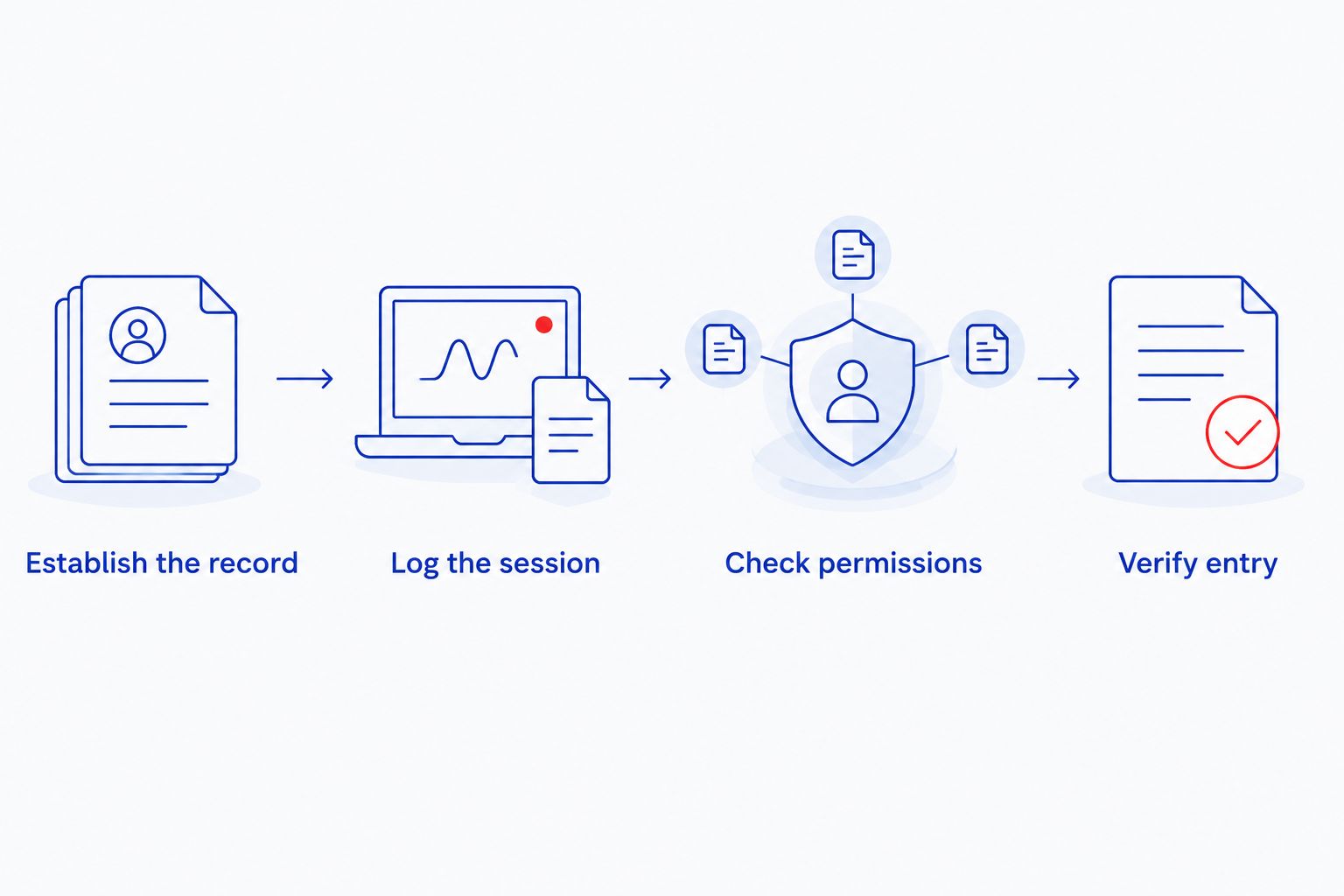
The sequence matters: establish the source, log the session, check permissions, then verify the entry. Changing settings without examining the source record makes it harder to identify where the transfer stops.
Second variant: update a completed workout
An edited session is a different test from a newly created session. Do not assume that successful creation proves successful updating.
- Open a completed workout in the source logger and correct a real error, such as an inaccurate duration.
- Save the correction in the source app. Keep a note of what changed.
- Inspect the corresponding Health Connect record to see whether the source app updated it.
- Check the existing Google Fit activity for the correction and look for an additional copy.
Expected result: Where the apps support updates, the corrected session replaces or updates the existing record rather than adding an unwanted duplicate.
If the correction does not propagate, consult the logger's documented update behavior. Do not repeatedly delete and recreate the session as a general fix: that obscures whether the problem is export, reading, or duplicate handling.
For manual entries, correct the Google Fit record separately. Editing your strength log does not change an activity you entered by hand.
Troubleshooting
The workout exists in the logger but not in Health Connect
Check whether the session is finished and saved, whether exercise export is enabled in the logger, and whether the logger has write permission. A connection that shares body measurements does not prove that it shares workouts.
If no exercise record reaches Health Connect, investigate the source app first. Google Fit cannot read a session that the logger has not supplied through that route.
Health Connect has the workout, but Google Fit does not
Check Google Fit's Health Connect connection and its permission to read the relevant exercise data. Then confirm that you are inspecting the intended Google Fit account and the correct date in Journal.
Reopen the apps and check again after the source has finished saving. Do not use an invented transfer-time promise as your troubleshooting threshold; the apps' documented behavior is the reference.
The workout appears twice
Identify the source of each entry. Common competing routes include a manually entered session and an imported session, or separate phone and watch records.
Keep the record you intend to use, remove the unwanted copy, and disable the redundant export route for future workouts. Do not delete the detailed lifting history merely to tidy the destination journal.
Sets and repetitions are missing
Check what the source app exports and what Google Fit displays. A visible activity summary is not evidence that detailed exercise data transferred.
Keep the strength log as the record of sets, repetitions, and load. Use Google Fit for the activity information it actually shows rather than recreating every lifting detail in a summary field.
The session appears on the wrong day
Compare the source date, device time zone, and destination entry. Workouts near midnight deserve a careful check because a time-zone difference changes the displayed calendar date.
Correct the source record where necessary, then verify the destination again. For a 2026 workflow, date accuracy matters more than a connection status that merely says the apps are linked.
Customize your workflow
Once the basic transfer works, make the log easier to use rather than adding more connections. Use consistent exercise names, distinguish warm-up work from working sets in your strength logger, and keep rest timing consistent with your chosen session-duration definition.
For a mixed home workout, decide whether you want one overall strength session or separately recorded activities. Make that decision before recording; splitting the same session differently across apps makes comparisons confusing.
Beferra's home fitness equipment fits the physical side of this setup. Its benefit is helping you choose everyday training essentials; equipment alone does not supply the recording or sync layer. If space is the constraint, use the weight benches for small home gyms guide before changing your training layout.
For 2026, keep the workflow intentional: one authoritative workout source and one verified destination record. Add another integration only when it solves a specific recording need.
FAQ
Can a weight bench sync directly with Google Fit?
An ordinary weight bench does not create a Google Fit workout record by itself. Direct connectivity requires documented tracking hardware and software support; otherwise, record the workout in an app.
What's the simplest way to log a bench workout in Google Fit?
Use Add activity in Google Fit, select the appropriate strength-training activity, enter the session details, and save it. Check Journal afterward to confirm the date and duration.
Is Health Connect better than manual Google Fit logging?
Health Connect is better for automatic transfer only when both apps support the required exercise data. Manual logging is simpler when you only need an occasional activity entry.
Will Google Fit show my bench press sets and repetitions?
Do not assume a Google Fit activity entry includes your sets and repetitions. Keep detailed lifting records in your strength-training logger and verify exactly what the destination displays.
Why did my bench workout appear twice in Google Fit?
Duplicate workouts occur when more than one route records the same session. Check for a manual entry alongside an import, or separate phone and watch sources, then retain one recording route.
Does this Health Connect workflow work on an iPhone?
No. Health Connect is an Android data-sharing system. On an iPhone, use manual Google Fit logging or an integration explicitly supported by your installed apps.
Do I need different Beferra fitness equipment to use Google Fit?
You do not need different equipment to enter a workout manually in Google Fit. Automatic transfer depends on your recording app and its supported connection, not an assumed feature of the equipment.
One last thing
A correct duration can still hide an incorrect training record. Google Fit can show that you completed a strength session without showing whether you increased the load or repeated the same exercises.
Before your next bench workout, review the detailed strength log—not just the activity total. That is where your next exercise choice belongs. Beferra covers home fitness essentials; your logger keeps the training history, and Google Fit provides the activity view you have verified.